Your crew clocks in at the job site, sends a daily report with photos and scans receipts. You see all of
it on your phone. In English and Spanish.
For iPhone and Android.
Try it free. No card needed.
Clock in and out
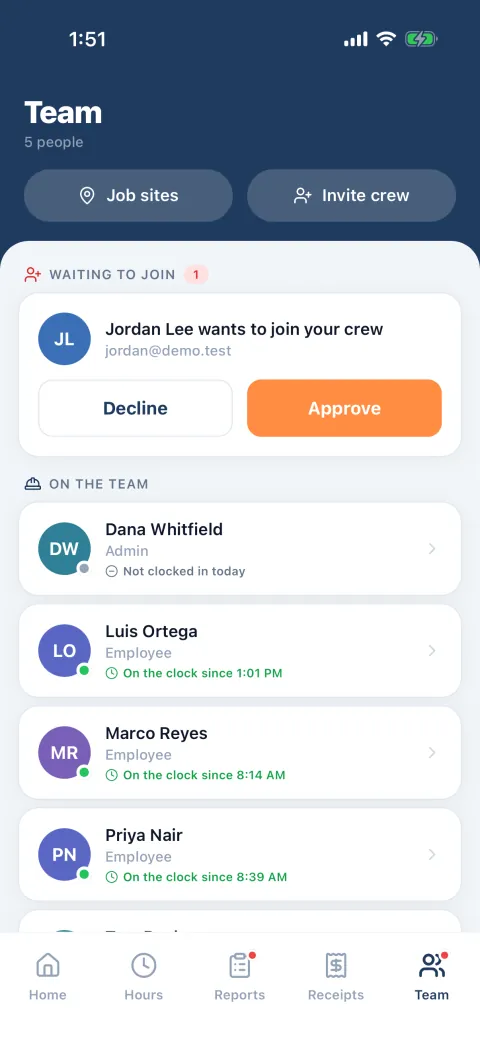
Who showed up
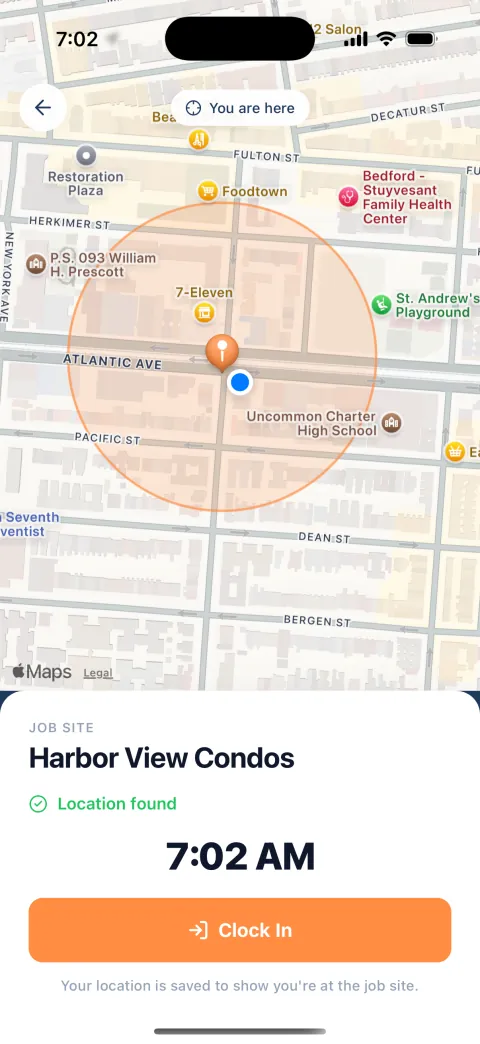
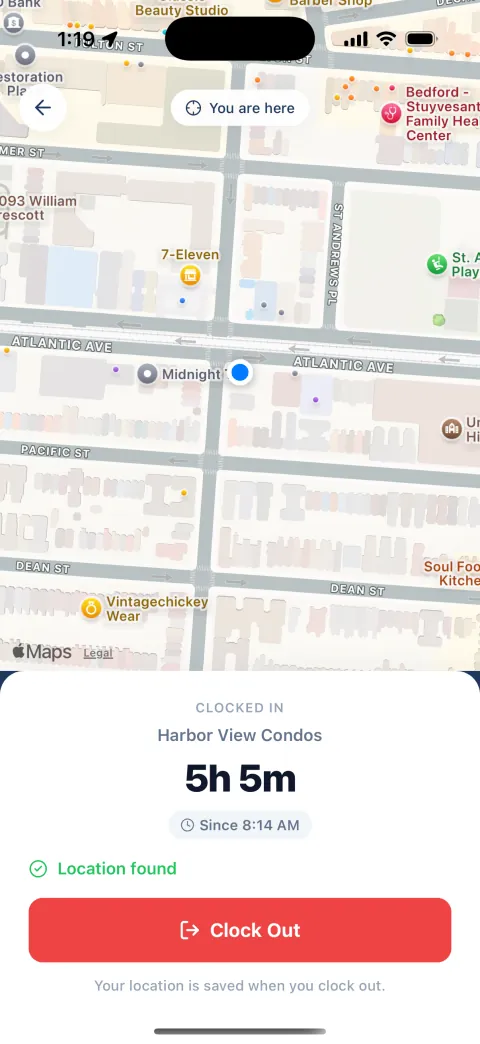
Your crew taps Clock In when they get to the job. GPS shows which job site they clocked in at. You see
who is on the clock right now, without calling anyone.
Location is saved when someone clocks in and when they clock out. Nothing in between.
Lunch is one button. You choose how long it is and whether it is paid.
Two job sites, or twenty: each has its own pin on the map.
Your crew’s phone
They clock in at the job. The map shows the site and where they are standing.
Your phone
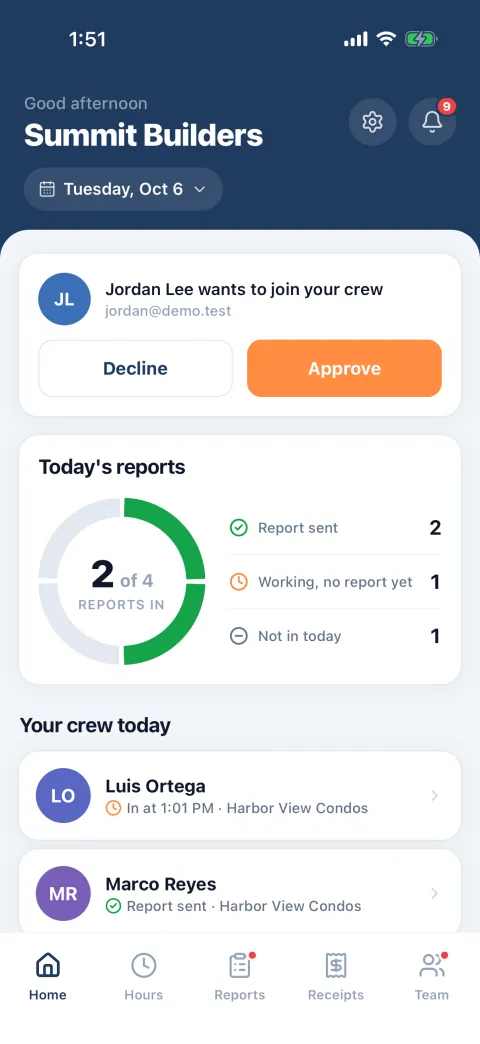
You see who is in, since when and at which job, and who has sent a report.
Daily reports
What got done
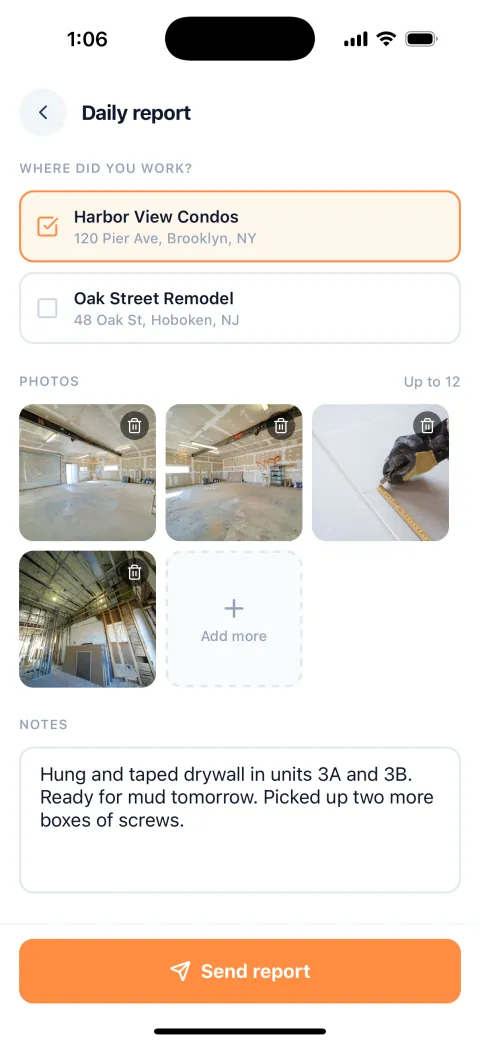
Before they leave, they add a few photos and a line about the day, and send. It reaches your phone with
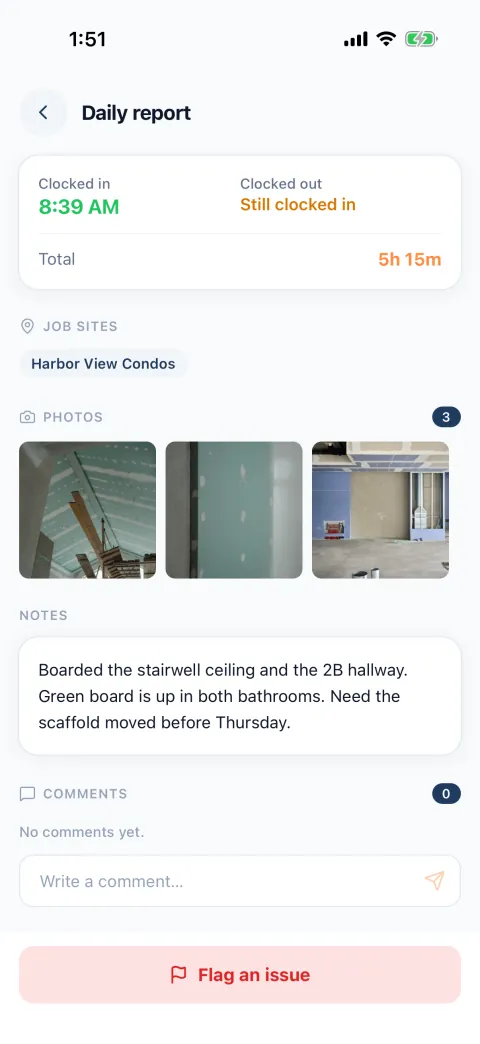
their hours for that day. If something is off, flag it and write a comment. They get a notice and
answer on the same report.
Up to 12 photos on a report.
A reminder to send it, at the time you set.
Every report is kept, by job site and by date.
Your crew’s phone
A few photos and a line about the day. It takes a minute.
Your phone
Photos, notes and that day’s hours in one place, with room to comment.
Hours and receipts
What it cost
Labor and materials, written down by the people who were there, the day it happened.
Hours, added up for you
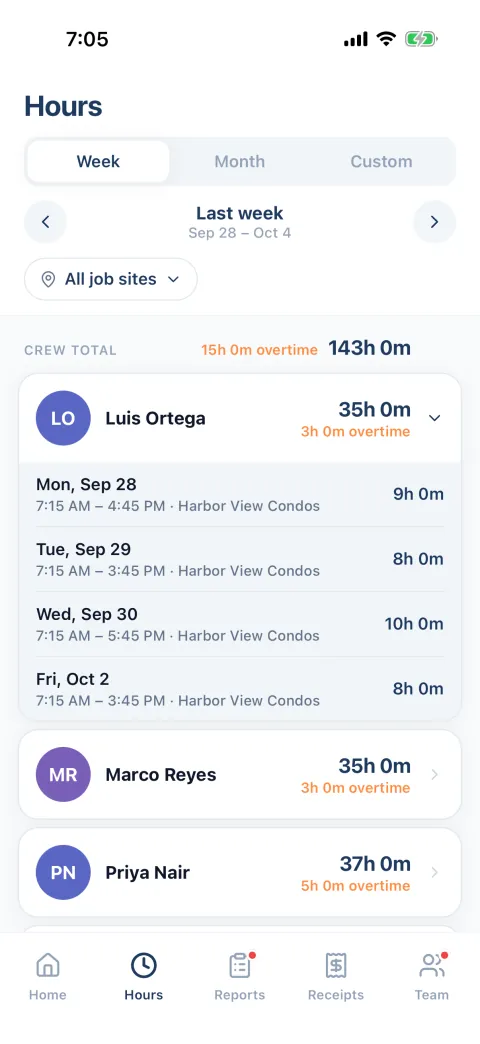
Every shift counts toward the week. Pick a week, a month or any dates and you have each person’s hours,
with overtime counted from the limit you set, by the day or by the week.
Your crew sees their own hours too: today’s and the week’s.
Filter by job site to see the hours one job took.
Your crew’s phone
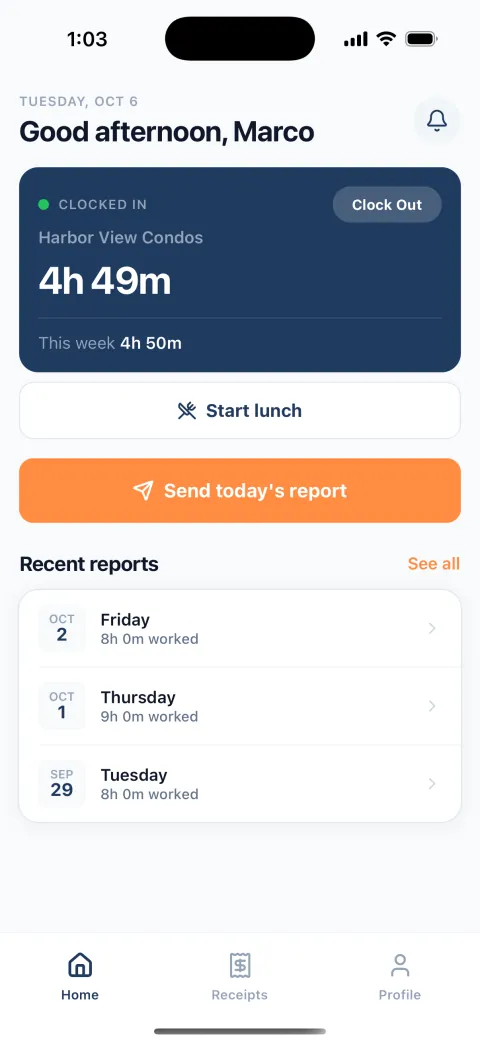
Clocking out shows the hours since they clocked in.
Your phone
The week’s hours and overtime, person by person.
Receipts, from a photo
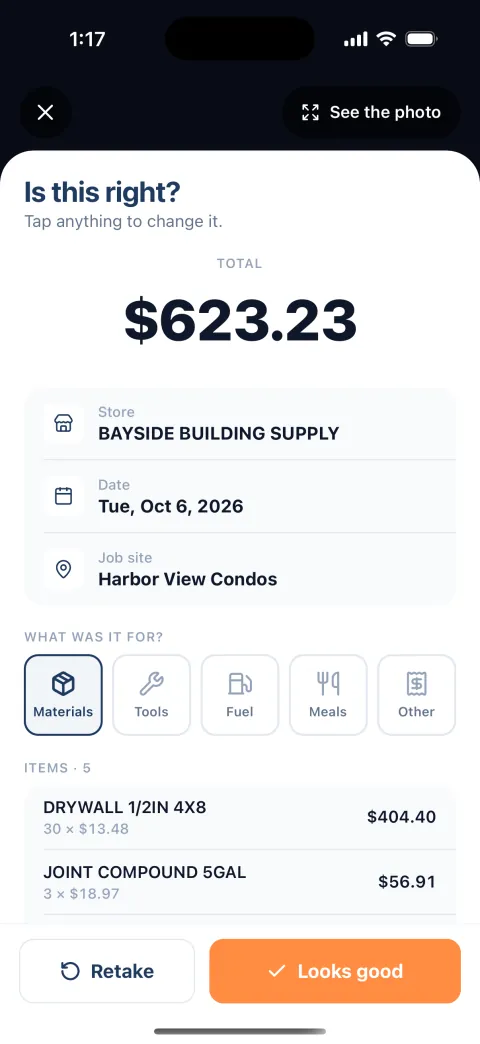
They take a photo of the receipt. The app reads the store, the total and the items, and they check it
before saving. It is filed under the job site, with the photo.
Materials, tools, fuel, meals or other.
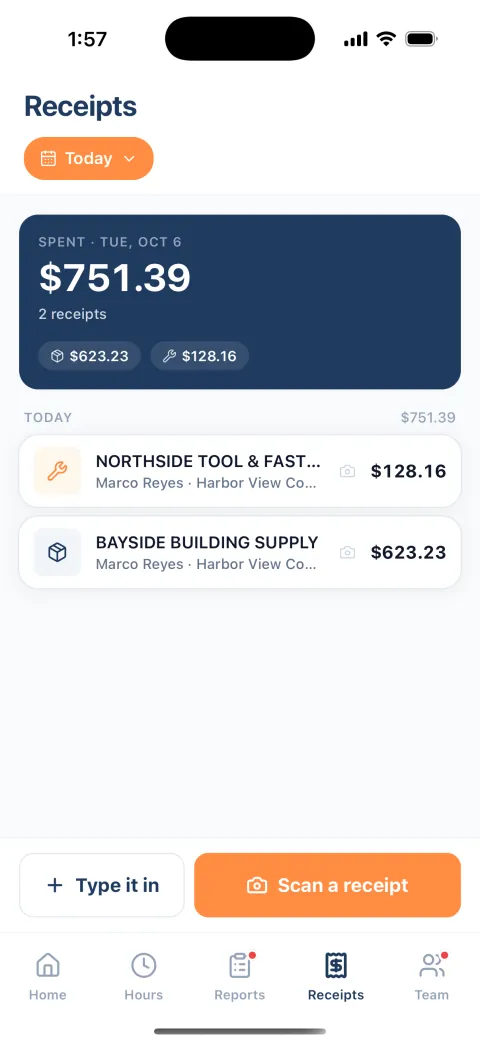
See what was spent today, this week, this month or between any two dates.
If a receipt can’t be read, they type it in. The photo is kept either way.
Your crew’s phone
Photo in. Store, total and items filled in. They check it and save.
Your phone
Every receipt and the total, with who bought it and for which job.
Getting started
Set up in a few minutes
Create your company
Your name, your email and your company’s name.
Add your first job site
Type the address or drop a pin on the map.
Share one link
Text it to your crew. They tap it, make an account and ask to join. You let each one in, or let the
link do it.
That is all of it. They can clock in.
For the crew
Your crew will use it
Because there is almost nothing to learn.
Three taps a day
Clock in, send the report, clock out. Lunch is one more.
In their language
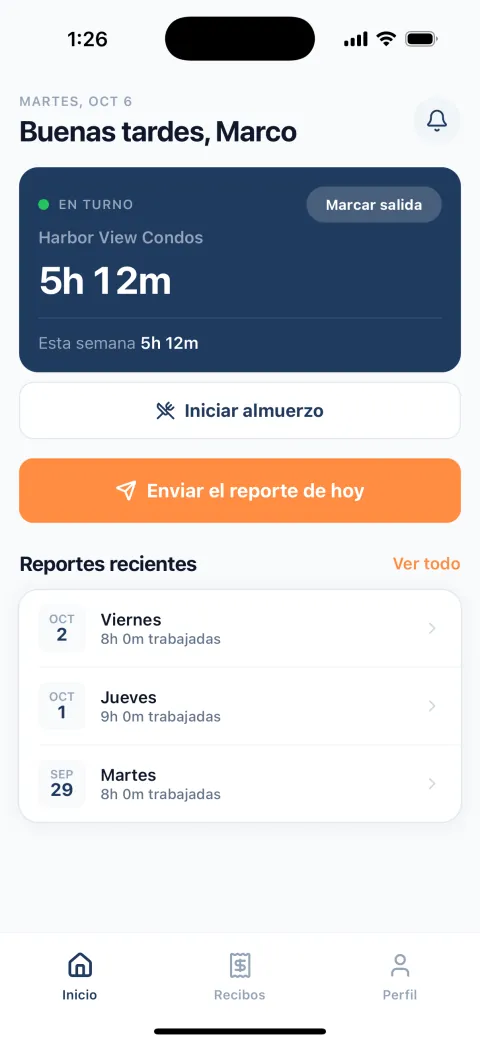
Each phone runs in English or Spanish. They pick.
They see their own hours
Today’s and the week’s, on their home screen.
It reminds them
A nudge to clock in and to send the report, at the times you set, on work days only.
It doesn’t follow them
Location is saved when they clock in and when they clock out, and at no other time.
One link to join
They tap the link you sent and make an account. Nothing to set up.
English
The whole day is on one screen.
Español
The same screen in Spanish.
Plans
Pick by the size of your crew
Try it free. No card needed.
Before you try it
Questions owners ask
Does it work on iPhone and Android?
Yes. It is the same app on both, so it does not matter which phones your crew has.
What if someone clocks in away from the job?
They can still clock in. The shift is saved with where they were and shows no job site, so you see it
and can ask.
Does it track my crew all day?
No. The app saves a location when someone clocks in and again when they clock out. It does not follow
anyone in between, and it does nothing in the background.
Does it run payroll?
No. It gives you each person’s hours and overtime for any week, month or dates you pick. You check them
and pay your crew the way you do now.
Can my foreman see the crew too?
Yes. Make anyone a manager. Managers see everyone’s hours, reports and receipts and can let new people
in. Only an admin changes the company’s settings or removes people.